

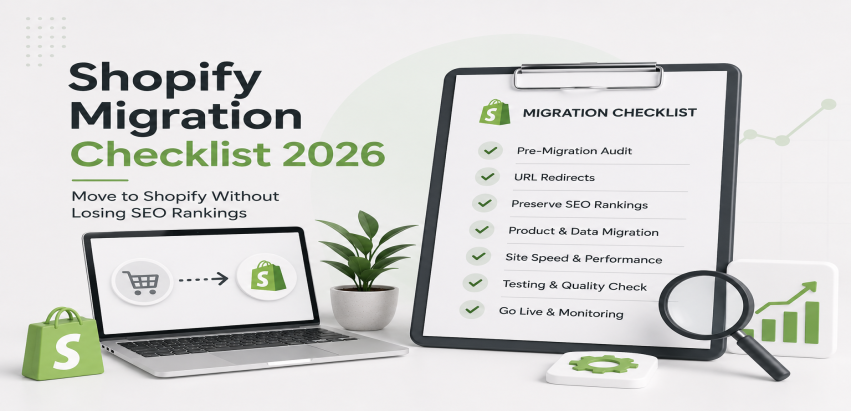
A Shopify migration checklist is a structured, phase-by-phase system covering every technical, SEO, and paid media action required to move an ecommerce store to Shopify without losing organic rankings, conversion tracking, or revenue continuity. It covers 301 redirects, URL mapping, Google Search Console resubmission, Meta Pixel reconfiguration, Google Merchant Center product feed resubmission, GA4 ecommerce tracking setup, pre-launch QA testing, and post-migration monitoring.
Most Shopify migration guides cover the technical store move. This one covers the full picture. The reason stores lose rankings after migration is almost never the platform switch itself. Rankings drop because the SEO layer was handled as an afterthought, the 301 redirects were incomplete, the Google Ads conversion tags stopped firing, or the Google Merchant Center feed was never resubmitted after the domain change. These are not advanced problems. They are predictable problems that a structured checklist prevents.
This guide is built for ecommerce store owners on WooCommerce, Magento, or a custom platform who have decided to migrate to Shopify and need a complete system they can either execute themselves or hand to a development team. It uses the AARMUS 5-Phase Shopify Migration Framework: Audit, Archive, Rebuild, Verify, and Scale. Each phase has a specific objective, specific tools, and specific failure modes that every migration must address. To see what a full-service Shopify migration includes, visit our Shopify website development services page.
The AARMUS 5-Phase Shopify Migration Framework
Every failed Shopify migration shares a structural problem: phases were executed out of order, skipped entirely, or treated as optional. A store that begins building its Shopify theme before completing a URL mapping audit will face weeks of redirect corrections after go-live. A store that launches without verifying conversion tracking will run Google Ads blind for days before discovering the purchase events stopped firing at the moment of domain cutover. The AARMUS framework sequences every migration activity in the correct order so that each phase creates the foundation the next phase depends on.
| Phase | Phase Name | Key Actions | Estimated Time | Primary Risk If Skipped |
|---|---|---|---|---|
| 1 | Audit | Crawl current site, identify high-value URLs, score migration risk, audit tracking setup | 3 to 7 days | Unknown redirect complexity causes post-launch ranking collapse |
| 2 | Archive | Back up all data, create URL mapping spreadsheet, select migration tool | 3 to 5 days | Data loss, broken redirects, unrecoverable product and customer records |
| 3 | Rebuild | Execute platform migration, implement 301 redirects, configure SEO elements, rebuild tracking | 2 to 6 weeks | Ranking collapse, conversion tracking loss, Google Shopping revenue loss |
| 4 | Verify | QA testing across SEO, checkout, speed, and tracking; final pre-launch sign-off | 3 to 5 days | Live launch with broken redirects, failed checkout, or dead tracking |
| 5 | Scale | Post-launch monitoring, ranking recovery tracking, paid media performance review | 30 to 90 days ongoing | Slow ranking recovery or undetected data problems compound for weeks |
Phase 1: Audit: Assess Your Migration Risk Before You Touch Anything
The single most common reason Shopify migrations go wrong is beginning the rebuild before understanding what the current site has built over years of operation. A store with 800 products, active Google Ads campaigns, a mature backlink profile, and 3,000 monthly organic visitors from long-tail product pages has a completely different migration risk profile than a store with 50 products and no paid media. Starting without an audit means discovering complexity mid-migration when reversing course is expensive and going forward is risky.
How to Crawl Your Existing Site Before Migration (Screaming Frog Setup)
Download Screaming Frog SEO Spider and crawl your current domain before a single file is moved. Set it to crawl all page types: product pages, collection pages, blog posts, static pages, and filtered URLs. Export the full crawl as a spreadsheet. The columns you need are URL, status code, page title, meta description, H1, canonical URL, inbound link count, and word count. This export becomes the baseline document for Phase 2 URL mapping. Any URL with more than five inbound links, a status 200 response, and more than 300 words of indexed content is a priority URL that must have a correctly configured 301 redirect in the new Shopify store from day one.
Identifying Your Most Important URLs (Traffic and Backlinks)
Open Google Analytics 4 and export your top 200 landing pages by organic sessions over the past 12 months. Then open Google Search Console and export your top pages by impressions and clicks. Cross-reference these with your Screaming Frog crawl export. Any URL appearing in both the high-traffic GSC list and the crawl data with multiple inbound links is a Tier 1 URL: a page that has accumulated both ranking authority and backlink equity. If a Tier 1 URL does not have a correct 301 redirect to its Shopify equivalent from launch day, the ranking and authority that URL has earned over years begins dissipating within weeks. Run your referring domain report in Ahrefs or SEMrush and filter for the specific pages receiving the most external links. These are the pages where a missing redirect has the highest long-term cost.
Auditing Your Existing Google Ads and Meta Ads Tracking Setup
Before migration begins, document every active tracking implementation on the current site. Open Google Tag Manager and record every tag that is currently firing: Google Ads conversion tags, GA4 event tags, Meta Pixel base code, Meta Pixel purchase events, Conversions API server-side events, and any remarketing audience tags. Screenshot the trigger conditions for each. This documentation is not optional. When the domain changes and Shopify goes live, every client-side tag that was firing on the old domain URL pattern must be verified against the new Shopify URL structure. A Google Ads purchase conversion tag configured to fire on the old thank-you page URL will stop firing the moment that URL changes. Without this audit document, there is no way to know which tags broke and which survived the migration.
Your Migration Risk Score (Self-Assessment)
Score your migration across five dimensions. A score above 10 points means your migration has high complexity that requires technical SEO and paid media expertise to execute safely. A score of 7 to 10 means medium complexity where an SEO audit before launch is strongly recommended. A score below 7 means lower complexity that a technically capable team can manage with this checklist.
| Risk Factor | Low Risk (1 point) | Medium Risk (2 points) | High Risk (3 points) | Your Score |
|---|---|---|---|---|
| Number of products | Under 100 products | 100 to 1,000 products | Above 1,000 products | |
| Current platform | Simple custom site or Wix | WooCommerce | Magento or complex custom build | |
| Monthly organic traffic | Under 500 sessions | 500 to 5,000 sessions | Above 5,000 sessions | |
| Active Google Ads or Meta Ads campaigns | No active campaigns | One platform active | Both platforms with purchase conversion tracking | |
| Referring domains (backlinks) | Under 50 referring domains | 50 to 300 referring domains | Above 300 referring domains | |
| Total Score | Add your points: Low = under 7 | Medium = 7 to 10 | High = above 10 | |||
Scored 10 or above? Your migration has enough complexity that a missed redirect or broken tracking tag will cost more in lost revenue than a professional audit prevents. Get a free pre-migration SEO audit before touching anything on the current site.
Phase 2: Archive: Pre-Migration Data Backup and URL Mapping Checklist
A Shopify migration with no backup strategy is a high-stakes operation with no undo button. Product data, customer records, order history, blog content, and reviews accumulated over years cannot be recovered from the old platform once the DNS is pointed to Shopify. The Archive phase exists to ensure that even a complete migration failure produces no permanent data loss, and that the URL mapping is completed accurately before a single redirect is implemented.
Complete Data Backup Checklist
Before any migration tool runs, manually export and store locally: all product data including titles, descriptions, SKUs, variants, images, and metafields; all customer records including email addresses, order history, and account data; all order records including order IDs, line items, shipping, and payment status; all blog posts and pages as HTML or CSV exports; all product reviews if using a review app; and all current media files from the WordPress or Magento media library. Store these exports in a Google Drive folder with a date-stamped filename. This archive is both the backup and the source file for verifying data integrity after migration completes.
How to Create Your URL Mapping Spreadsheet
The URL mapping spreadsheet is the most operationally critical document in the entire migration. It maps every URL on the current site to its corresponding Shopify URL, specifies the redirect type (301 for permanent, 302 only during temporary testing), and assigns a priority tier based on traffic and backlink authority. The spreadsheet should have five columns: Old URL, New Shopify URL, Redirect Type, Priority Tier (1, 2, or 3), and Implementation Status.
Shopify's URL structure uses fixed paths that cannot be changed: products use /products/product-handle, collections use /collections/collection-handle, blog posts use /blogs/news/post-handle, and pages use /pages/page-handle. If your current WooCommerce or Magento store uses different URL structures, every product and category URL requires a redirect entry in this spreadsheet. A store with 800 products, 40 categories, and 120 blog posts typically requires 960 to 1,200 redirect entries before accounting for filtered URL variants.
Choosing the Right Migration Tool
| Tool | Best For | Data Types Supported | India Price (INR) | USA Price (USD) | SEO Data Preserved? |
|---|---|---|---|---|---|
| Shopify Importer (native) | Simple WooCommerce migrations under 500 products | Products, customers, orders (basic) | Free | Free | No: meta titles and descriptions require manual migration |
| Cart2Cart | Mid-size migrations from WooCommerce or Magento | Products, customers, orders, reviews, blog posts | INR 8,000 to INR 45,000 | $100 to $550 | Partial: checks source platform support before purchase |
| LitExtension | Complex migrations with reviews and SEO metadata | Products, customers, orders, reviews, SEO fields, blog posts | INR 10,000 to INR 60,000 | $120 to $750 | Yes: meta titles, meta descriptions, and alt text supported |
| Manual CSV Import | Stores under 200 products needing full control | Products only (requires separate customer and order migration) | Free (time cost only) | Free (time cost only) | Yes: if CSV includes SEO columns correctly formatted |
LitExtension is the recommended choice for any store with more than 300 products, active reviews, or specific SEO metadata requirements. Its SEO field migration support prevents the need to manually re-enter meta titles and descriptions for every product, which on a 500-product store represents several days of manual work. For a comparison of platform capabilities before committing to migration, see our Shopify vs WooCommerce vs custom code comparison.
Phase 3: Rebuild: Platform-Specific Migration Paths
The technical complexity and redirect volume of a Shopify migration depends heavily on where the store is coming from. A WooCommerce migration and a Magento enterprise migration require different resources, different timelines, and different risk management strategies. Getting this wrong in either direction, underestimating a Magento migration or overcomplicating a WooCommerce one, produces either budget overruns or missed complexity that appears as ranking problems post-launch.
WooCommerce to Shopify Migration Checklist
WooCommerce stores on WordPress use URL structures that conflict with Shopify's fixed paths. A WooCommerce product at /product/blue-running-shoes becomes /products/blue-running-shoes on Shopify, meaning every product URL requires a redirect. A WooCommerce category at /product-category/running-shoes becomes /collections/running-shoes, meaning every category page requires a redirect. On a store with 1,000 products and 50 categories, this produces a minimum of 1,050 redirect entries before accounting for tag pages, filtered URLs, and paginated archive pages.
WooCommerce-specific steps: export all products via WooCommerce CSV export, export customers and orders via WooCommerce admin, export blog posts via WordPress export tool, manually record all active Yoast SEO meta titles and descriptions for Tier 1 URLs, document all active WooCommerce plugin functionality that needs a Shopify app equivalent, and record the exact URL structure of every product, category, tag, and page that has organic traffic or backlinks.
Magento to Shopify Migration Checklist (Enterprise Complexity)
Magento migrations are structurally more complex than WooCommerce for three reasons: Magento stores typically have larger product catalogs with complex attribute sets, Magento's URL key system generates URL structures that vary significantly from store to store, and Magento enterprise deployments often have custom functionality that has no direct Shopify equivalent. A Magento store with 5,000 products, multiple storeviews, complex configurable products with many variants, and layered navigation can require 15,000 to 30,000 redirect entries. This volume requires bulk redirect import via Shopify's redirect CSV upload or a redirect management app rather than manual entry through the Shopify admin.
Magento-specific considerations include: configurable products in Magento become Shopify products with variants, requiring variant data to be restructured in the migration CSV; Magento store views targeting different regions require hreflang implementation on Shopify using Shopify Markets; and Magento's layered navigation filter URLs typically need to be either redirected to collection pages or blocked from indexation using the robots.txt configuration.
Custom Site to Shopify Migration Checklist (Highest Redirect Risk)
Custom-built ecommerce sites carry the highest redirect risk because there is no standardised URL structure to work from. A custom site may have URLs like /shop/category/subcategory/product-name or /item/12345/blue-running-shoes that have no logical mapping to Shopify's /products/blue-running-shoes structure. Every URL must be individually mapped. There is no automated tool that can determine the correct destination for an arbitrary custom URL. The entire URL mapping spreadsheet must be built manually from the Screaming Frog crawl output, traffic data, and backlink reports before any redirect implementation begins.
Shopify's URL Structure: How /products/ and /collections/ Affect Redirects
Shopify enforces fixed URL prefixes that cannot be removed or changed. Products always use /products/handle. Collections always use /collections/handle. Blog posts always use /blogs/blog-name/post-handle. This means that a store migrating from a platform with a flat URL structure, for example /blue-running-shoes/ at the root domain, must redirect every such URL to its Shopify equivalent at /products/blue-running-shoes. There is no option to replicate a flat URL structure on Shopify. This is the source of redirect volume estimates and the primary reason why accurate URL mapping before migration is not optional.
Hreflang Strategy for India and USA Multi-Region Shopify Stores
Shopify Markets is the native feature for managing multi-region stores targeting both India and international markets. If the migrating store serves both Indian and international customers, hreflang tags must be configured in Shopify Markets to tell Google which version of each page serves which region and language. Incorrect or absent hreflang implementation causes Google to rank the wrong regional version in the wrong market, producing high bounce rates from geographic mismatch and eventual ranking suppression in both target markets. Configure Shopify Markets after the core migration is complete but before the DNS cutover.
| From Platform | Redirect Complexity | Data Migration Difficulty | Avg Redirect Volume (1,000 SKUs) | Avg Timeline | SEO Risk Level | Recommended Approach |
|---|---|---|---|---|---|---|
| WooCommerce | Medium | Low to Medium | 1,000 to 1,500 redirects | 2 to 4 weeks | Medium | LitExtension or Cart2Cart plus manual Tier 1 URL review |
| Magento | High | High | 5,000 to 15,000 redirects | 4 to 10 weeks | High | Agency-led migration with dedicated redirect management tool |
| Custom Site | Very High | Very High | Variable: requires full manual URL mapping | 6 to 14 weeks | Very High | Full technical SEO audit before migration begins; agency recommended |
| Wix or Squarespace | Low | Low | 200 to 600 redirects | 1 to 2 weeks | Low | DIY with Shopify Importer and manual redirect setup |
SEO Migration Checklist: Preserving and Improving Your Rankings
Every Shopify migration causes a temporary ranking disruption. This is not a platform flaw. It is a predictable consequence of changing URL structures, updating the sitemap, and asking Google to re-evaluate pages that have moved. The goal of the SEO migration checklist is not to prevent this temporary disruption entirely but to ensure it lasts four to twelve weeks rather than four to twelve months. Migrations executed without this checklist can produce ranking losses that do not recover for six months or longer, particularly for stores with large backlink profiles where Google must re-associate hundreds of external links with new URLs before the authority transfers.
301 Redirect Implementation on Shopify: The Complete Setup Guide
Shopify implements 301 redirects through two pathways. The first is the Shopify admin: navigate to Online Store, then Navigation, then URL Redirects. Enter the old URL path (without the domain) in the Redirect From field and the new Shopify URL in the Redirect To field. This method works for stores with fewer than 500 redirects. For stores with larger redirect volumes, use the bulk redirect import via CSV upload. The CSV file requires two columns: Redirect From and Redirect To, formatted as URL paths without the domain name.
Google honours 301 redirects as permanent signals and transfers ranking authority from the old URL to the new destination. The authority transfer is not instant. Google's systems take time to process redirect chains across large sites. Google's documentation indicates that 301 redirects may take up to one year to fully transfer PageRank in some cases, though ranking improvements from correctly implemented redirects typically appear within four to twelve weeks of launch.
How to Verify Your Redirects Are Working
After uploading redirects to Shopify, verify them through three methods. First, manually test 20 to 30 Tier 1 URLs by entering the old URL in a browser and confirming it reaches the correct Shopify destination with no intermediate steps. Second, run a crawl of the old domain using Screaming Frog configured to follow redirects and report the final URL and status code for each old URL. Any URL returning a 404 rather than a 301 to the correct destination is a broken redirect requiring immediate correction. Third, use an HTTP header checker tool to confirm that the response header for each old URL shows a 301 status code rather than a 302 or a 200.
Migrating Meta Titles and Meta Descriptions to Shopify
Shopify allows meta titles and meta descriptions to be edited at the product, collection, page, and blog post level. If LitExtension was used for data migration with SEO field support enabled, these fields should have migrated automatically. If Shopify Importer or a CSV import was used, meta titles and descriptions must be added manually or via a bulk CSV update. For Tier 1 URLs, verify that meta titles are under 60 characters, contain the target keyword, and are unique across the store. A store with duplicate meta titles across product variants is a common post-migration issue that Screaming Frog identifies in its Title column filter for duplicates.
Rebuilding Schema Markup on Shopify Post-Migration
If the previous platform had custom schema markup implemented, Shopify's default theme schema must be verified against what was running before. Shopify themes automatically generate Product schema, BreadcrumbList schema, and Organization schema from theme code. If the previous platform had custom FAQPage schema, Article schema for blog posts, or Review schema from a reviews app, these must be re-implemented on Shopify using a schema markup app or custom Liquid code in the theme. Verify schema implementation using Google's Rich Results Test tool on the live Shopify URL after launch.
Canonical Tag Strategy During the Migration Window
Shopify automatically generates self-referencing canonical tags on all product, collection, and page URLs. However, Shopify also generates canonical tags on paginated collection pages and product variant pages that may need to be reviewed. During the migration window, before the old site is taken offline, the old site should ideally have canonical tags updated to point to the new Shopify URLs. This signals to Google that the Shopify version is the authoritative version and accelerates the transfer of ranking authority from old URLs to new ones.
Sitemap Resubmission to Google Search Console After Migration
Shopify automatically generates a sitemap at yourdomain.com/sitemap.xml. After the DNS has propagated and the Shopify store is live on the primary domain, navigate to Google Search Console and add the new Shopify sitemap URL under Sitemaps. If the old domain had a GSC property, request indexation removal of old URLs through the URL Removal tool. Then submit the Shopify sitemap and use the URL Inspection tool to request indexing for the top 20 Tier 1 priority pages. Google will not crawl and re-evaluate the entire site overnight, but manual indexing requests for priority pages accelerate the visibility recovery timeline.
Robots.txt Configuration on Shopify
Shopify's robots.txt file is partially editable through the theme. The default configuration blocks crawlers from admin pages, checkout pages, and account pages, which is correct. Review the default robots.txt at yourdomain.com/robots.txt after launch and confirm that no product, collection, or blog URL patterns are being blocked. A robots.txt misconfiguration that blocks collection pages or product pages from crawling will cause those pages to disappear from Google's index within weeks, regardless of how correctly the 301 redirects were implemented.
Core Web Vitals Before vs After Migration
Shopify stores on well-optimised themes like Dawn, Craft, or Sense typically perform better on Core Web Vitals than overloaded WooCommerce installations with multiple plugins affecting page render times. However, theme migration is not automatic Core Web Vitals improvement. Installing too many Shopify apps that inject JavaScript into the storefront, using unoptimised hero images, or choosing a theme with heavy animation code can produce Core Web Vitals scores that are worse than the previous platform. Run PageSpeed Insights on the new Shopify store during the preview phase, before DNS cutover, and address any LCP above 2.5 seconds or INP above 200 milliseconds before going live.
| SEO Element | Action Required | Tool to Use | Priority Level | Completion Status |
|---|---|---|---|---|
| 301 redirects | Upload complete redirect CSV covering all Tier 1 and Tier 2 URLs | Shopify admin URL Redirects or bulk CSV import | Critical | |
| Redirect verification | Crawl old domain and verify 301 response for every redirect entry | Screaming Frog configured to follow redirects | Critical | |
| Meta titles and descriptions | Verify all Tier 1 pages have unique, keyword-relevant meta titles under 60 characters | Screaming Frog or Shopify bulk editor | High | |
| XML sitemap submission | Submit Shopify sitemap.xml to Google Search Console after DNS propagation | Google Search Console Sitemaps section | Critical | |
| Robots.txt review | Confirm no product, collection, or blog paths are blocked | yourdomain.com/robots.txt review | High | |
| Canonical tags | Verify self-referencing canonicals on all key pages; update old site canonicals to point to Shopify URLs | URL Inspection in GSC; Screaming Frog canonical column | High | |
| Schema markup | Verify Product, BreadcrumbList, and Organization schema; re-implement FAQ and Review schema if applicable | Google Rich Results Test | Medium | |
| Core Web Vitals | Run PageSpeed Insights on Shopify preview URL; resolve LCP above 2.5s and INP above 200ms before launch | PageSpeed Insights, Google Search Console CWV report | High | |
| Internal linking | Verify that all internal links in Shopify use the new URL structure, not old platform URLs | Screaming Frog crawl of Shopify preview URL | Medium | |
| Google Search Console property | Add new Shopify domain as GSC property, verify ownership, and submit sitemap | Google Search Console | Critical |
Not sure if your SEO migration setup is correct before go-live? Get a free Shopify SEO migration audit that reviews your redirect implementation, meta data, sitemap configuration, and technical setup before you make the domain switch. Our Shopify SEO management services also cover ongoing optimisation after migration is complete. For broader ecommerce SEO services, see our full service offering.
Google Ads, Meta Ads, and Google Merchant Center Reconfiguration Checklist
This is the section that no other Shopify migration guide covers, and it is the section where the most expensive post-migration problems originate. A store spending INR 80,000 per month or $2,000 per month on Google Shopping campaigns that does not resubmit its product feed to Google Merchant Center after changing its domain will see its Shopping ads disappear from results within 48 to 72 hours of domain cutover. During the Merchant Center feed reapproval period, which typically takes 3 to 10 business days, every day without Shopping impressions is revenue that does not exist. A store running Performance Max campaigns loses its Google Merchant Center product data as a signal source, degrading campaign performance even when the ads are still technically running.
Google Ads Conversion Tracking Reconfiguration on Shopify
Google Ads conversion tracking breaks the moment a Shopify migration changes the URL of the order confirmation page. The Google Ads purchase conversion tag is typically configured to fire on the thank-you page URL. When that URL changes from the old platform's structure to Shopify's /thank_you URL, any conversion tag that uses a URL-based trigger stops firing entirely.
The correct reconfiguration process: open Google Tag Manager and locate the Google Ads conversion tag for purchase events. Update the trigger from the old thank-you page URL pattern to Shopify's confirmation page URL pattern (/thank_you or /checkouts/cn/thank_you depending on Shopify checkout version). Verify the tag fires by placing a test order on the Shopify store in preview mode and checking Tag Assistant or the real-time GTM preview to confirm the conversion tag fires and sends the correct purchase event with the correct revenue value to Google Ads. Do not launch the Shopify store on the live domain until this test is confirmed successful.
Meta Pixel and Conversions API (CAPI) Setup After Migration
Shopify has a native Meta integration available in the Shopify admin under Sales Channels. Installing the Meta sales channel connects Meta's Pixel and Conversions API through Shopify's native integration without requiring custom Tag Manager implementation. This is the recommended approach for most stores because it handles both browser-side pixel events and server-side Conversions API events automatically through Shopify's checkout data. For stores with a custom checkout flow or specific CAPI configuration requirements, verify that the server-side purchase events are firing correctly using the Meta Events Manager's Test Events tool after migration. Run a test purchase and confirm the purchase event appears in both browser-side and server-side columns of the Events Manager dashboard.
The critical failure point for Meta tracking during migration is duplicate pixel events. If the old platform had a Meta Pixel installed via GTM and the new Shopify store has the native Meta integration active, both can fire simultaneously, creating doubled conversion data that inflates reported ROAS and causes Meta's algorithm to misallocate budget. After enabling Shopify's native Meta integration, remove the old pixel GTM tags or deactivate them to prevent duplicate event firing.
GA4 Ecommerce Tracking Setup on Shopify Post-Migration
Shopify supports GA4 ecommerce tracking through two methods: native integration via Shopify's Google and YouTube channel app, or custom implementation via Google Tag Manager. The native integration is simpler but less configurable. GTM implementation allows custom event parameters, enhanced conversion data, and more granular funnel tracking. Whichever method is used, verify these specific GA4 ecommerce events are firing after migration: view_item, add_to_cart, begin_checkout, add_payment_info, and purchase. The purchase event must include the correct transaction ID, revenue value, currency, and item array. Test all five events using GA4's DebugView before the store goes live and after DNS propagation confirms traffic is reaching Shopify.
Google Merchant Center Product Feed Resubmission After Domain Change
When a Shopify store's primary domain changes, Google Merchant Center requires domain re-verification before the product feed can serve Shopping ads. The resubmission process: navigate to Google Merchant Center, go to Business Information and update the store's website URL to the new Shopify domain, verify domain ownership using the HTML tag or DNS verification method, then navigate to the Products section and resubmit the product feed. Shopify's native Google channel integration automatically generates and submits a product feed from your active products. After submitting, Merchant Center enters a review period of 3 to 10 business days during which products appear as pending and do not serve in Shopping results.
Schedule your domain cutover for the beginning of a business week to ensure the Merchant Center team reviews the feed within the standard business day timeline. Avoid cutting over on a Friday afternoon or immediately before a major shopping period like a sale event. The Shopping campaign revenue loss during the reapproval window is the migration's largest single business risk for stores with significant Google Shopping revenue.
Shopify's Native Google and Meta Integrations: What to Enable First
After DNS propagation is confirmed, the priority order for enabling Shopify integrations is: first, Google and YouTube channel for GA4 and Merchant Center, which establishes baseline analytics and Shopping feed; second, Meta sales channel for Pixel and CAPI, which restores remarketing audience building; third, verify Google Ads conversion tags are firing via GTM; fourth, check that Google Analytics 4 real-time is receiving sessions from the new domain. Only after these four are confirmed should campaign budgets be restored to pre-migration levels.
| Platform | What Breaks After Migration | Action Required | Tool or Channel | Time to Fix | Revenue Risk If Skipped |
|---|---|---|---|---|---|
| Google Ads | Purchase conversion tag stops firing when thank-you page URL changes | Update GTM trigger to Shopify /thank_you URL pattern; test with Tag Assistant | Google Tag Manager, Tag Assistant | 2 to 4 hours | Smart Bidding optimises toward zero conversions; CPA rises sharply within 7 days |
| Meta Ads (Pixel) | Browser-side pixel events break on URL change; duplicate events if old tags not removed | Enable Shopify native Meta integration; remove old GTM pixel tags | Shopify Meta sales channel, Meta Events Manager | 1 to 3 hours | Remarketing audiences stop building; retargeting ROAS degrades within 2 to 4 weeks |
| Meta Ads (CAPI) | Server-side events may need reconfiguration if custom implementation used | Test purchase events in Meta Events Manager Test Events tool | Meta Events Manager, Shopify Meta integration | 2 to 4 hours | Conversion signal quality drops, increasing CPM and CPA for purchase campaigns |
| GA4 | Ecommerce events stop firing on new Shopify URL structure | Configure GA4 ecommerce via Shopify Google channel or GTM; verify in DebugView | GA4 DebugView, Shopify Google channel | 3 to 6 hours | Analytics data gap makes post-migration performance assessment impossible |
| Google Merchant Center | Domain change triggers re-verification and feed resubmission requirement | Update domain in GMC, re-verify ownership, resubmit product feed via Shopify Google channel | Google Merchant Center, Shopify Google channel | 3 to 10 business days for approval | Shopping ads stop serving; Performance Max loses product data signal source |
| Performance Max | Landing page URLs in asset groups point to old domain | Update all landing page URLs in Performance Max asset groups to Shopify URLs | Google Ads editor or interface | 1 to 2 hours | Traffic sent to 301 redirects loses Quality Score; CPC increases |
Running Google Ads on your migrated Shopify store? A single day of broken conversion tracking produces corrupted Smart Bidding signals that take weeks to correct. Get a free conversion tracking audit to verify every tag is firing correctly before campaigns go back to full budget. For ongoing Google Ads management after migration, see our Google Ads management for Shopify stores.
Shopify Theme, Design, and App Migration Checklist
Theme selection on Shopify is an SEO and performance decision as much as a design decision. A visually impressive theme that loads in 6 seconds on mobile will consistently underperform against a faster, simpler theme in competitive organic search results. The theme choice made at the start of rebuild determines the Core Web Vitals baseline that everything else is optimised around. Changing themes after launch requires repeating significant customisation work.
Choosing a Shopify Theme That Preserves Page Speed
Shopify's native themes Dawn, Craft, Sense, and Refresh are built to Shopify's performance standards and typically score 80 to 95 on Google Lighthouse mobile performance tests with default configuration. Third-party themes from the Shopify Theme Store vary significantly in performance quality. Before committing to any paid theme, download the theme demo and run it through PageSpeed Insights. A theme with a mobile performance score below 60 in its default state before any customisation or app installation is a performance liability that only gets worse as the store is built out. Premium themes priced at $350 to $400 are not automatically better performers than Shopify's free themes.
WooCommerce Plugin to Shopify App Equivalents
WooCommerce's plugin ecosystem does not map directly to Shopify's app ecosystem. Every WooCommerce plugin that was performing a function in the live store must have an identified Shopify app equivalent before migration begins. Installing equivalent apps after launch produces a period where store functionality is absent or broken.
Common migration equivalents: Yoast SEO becomes Smart SEO, SEO King, or Plug In SEO on Shopify; WPML for multilingual sites becomes Shopify Markets or Transcy; WooCommerce Subscriptions becomes Recharge or Bold Subscriptions; WooCommerce Bookings becomes Cowlendar or BookThatApp; Klaviyo operates natively on both platforms with the same account; and customer review apps like Stamped.io and Judge.me have direct Shopify equivalents with customer data migration support.
Shopify SEO App Stack: What to Install Immediately After Migration
| App Name | Best For | Key Features | Monthly Price (USD) | Monthly Price (INR approx) | Rating | Recommended Store Size |
|---|---|---|---|---|---|---|
| Smart SEO | Automated meta tag and sitemap management | Auto meta tags, sitemap generation, JSON-LD schema, broken link detection | $9.99 | INR 830 | 4.9/5 | Small to mid-size stores under 5,000 products |
| SEO King | Bulk SEO editing and image alt text optimisation | Bulk meta editor, image alt text, SEO score per page, sitemap control | $7.99 to $29.99 | INR 665 to INR 2,500 | 4.8/5 | Stores with large product catalogs needing bulk SEO management |
| Plug In SEO | SEO health monitoring and issue alerts | Ongoing SEO audit, broken link checker, structured data, redirect manager | Free to $29.99 | Free to INR 2,500 | 4.7/5 | All store sizes; free tier works for basic monitoring |
| JSON-LD for SEO | Structured data and rich results | Product, BreadcrumbList, Organization, FAQ schema without code | $12.99 | INR 1,080 | 4.9/5 | Stores targeting rich results in Google Shopping and organic results |
| Ahrefs or SEMrush GSC Integration | External ranking and backlink monitoring | Keyword rank tracking, backlink monitoring, competitor gap analysis | $29+ (external tool) | INR 2,400+ | Industry standard | Any store with existing organic traffic worth protecting |
Migrating Customer Reviews and UGC to Shopify
Customer reviews accumulated over years on a WooCommerce or Magento store are a trust and conversion asset that must be migrated, not abandoned. Judge.me, Stamped.io, and Loox all support review import from WooCommerce via CSV. The import requires exporting reviews from the WooCommerce review database or via the existing review app's export function, formatting the CSV to match the Shopify app's required columns (product ID, reviewer name, rating, review body, date), and importing to the Shopify review app before the store goes live. Reviews that are not migrated before launch represent a conversion rate disadvantage from day one on the new store.
Phase 4: Verify: Pre-Launch QA Testing Checklist
The pre-launch verification phase is where migrations succeed or fail in the final hours before go-live. Stores that skip structured QA testing discover their problems after traffic hits the live Shopify domain, when broken checkout flows, failed payment gateways, and dead tracking tags are customer-facing issues rather than staging environment problems. Every item in the QA checklist should be verified by a person who did not build the store, because the person who configured the redirects is the least likely person to notice a redirect they forgot to add.
SEO Verification Checklist (Crawl, Indexability, Redirects)
Run Screaming Frog against the Shopify preview URL with the password removed (via Shopify admin under Online Store, Preferences) and review: every product page returns 200 status, every collection page returns 200 status, no pages have duplicate meta titles, no pages are missing meta descriptions on Tier 1 URLs, all internal links use relative or absolute Shopify URLs rather than old platform URLs, and the sitemap.xml is accessible and contains all expected URLs. Then test 30 to 50 old URLs from the URL mapping spreadsheet by entering them in a browser and confirming they redirect to the correct Shopify destination with a single hop.
Checkout and Payment Gateway Testing Checklist
Complete at least three full test purchases using Shopify's test gateway before switching to live payment processing. Verify that: the cart correctly calculates discounts, taxes, and shipping; the checkout flow completes without errors on both desktop and mobile; the order confirmation email triggers correctly; order data appears in the Shopify admin; and customer accounts are created correctly where applicable. For Indian stores using Razorpay, PayU, or Cashfree, enable the payment gateway in test mode and complete a full purchase flow using the gateway's test card credentials. Indian payment gateways require specific GST configuration in Shopify. Verify that the GST amount displayed at checkout matches the expected rate for each product type before switching to production payment processing.
Mobile and Page Speed Testing Checklist
Run PageSpeed Insights on the Shopify preview URL for the homepage, one product page, and one collection page. Target a mobile score of 70 or above before launch. LCP should be under 2.5 seconds. INP should be under 200 milliseconds. CLS should be under 0.1. If any of these metrics fail on the preview URL before DNS cutover, they will fail on the live domain. Address the specific opportunities listed in the PageSpeed Insights report for the failing metrics before proceeding to launch.
Conversion Tracking Verification (GA4, Google Ads, Meta Pixel)
Place a test order on the Shopify store using the preview URL and Shopify's test gateway. Open Tag Assistant in a browser tab while completing the test purchase and confirm: the GA4 purchase event fires with the correct transaction ID and revenue value, the Google Ads conversion tag fires on the /thank_you page, and the Meta Pixel purchase event fires at checkout confirmation. If any of these tags do not fire during the test order, do not launch on the live domain. A launch with broken conversion tracking starts the post-migration period with corrupted data that damages Smart Bidding performance for weeks after the issue is resolved.
| Category | Test Item | Tool to Use | Pass Criteria | Status |
|---|---|---|---|---|
| SEO | All product pages return 200 status | Screaming Frog crawl of preview URL | Zero 4xx or 5xx status codes on priority pages | Pass / Fail |
| SEO | 30 Tier 1 old URLs redirect correctly | Browser test and HTTP header checker | 301 response code, correct destination, single hop | Pass / Fail |
| SEO | Sitemap.xml accessible and correct | Browser at /sitemap.xml | Returns valid XML; includes all priority product and collection pages | Pass / Fail |
| SEO | Robots.txt not blocking key paths | Browser at /robots.txt | No Disallow entries for /products, /collections, or /blogs | Pass / Fail |
| Checkout | Test order completes successfully | Shopify test gateway and test card | Order appears in admin, confirmation email sent | Pass / Fail |
| Checkout | Payment gateway live mode test (India: Razorpay or PayU) | Gateway test mode with test credentials | Full checkout flow completes; order confirmation received | Pass / Fail |
| Speed | Homepage mobile LCP under 2.5 seconds | PageSpeed Insights | LCP below 2.5s; mobile score 70 or above | Pass / Fail |
| Speed | Product page CLS under 0.1 | PageSpeed Insights | CLS below 0.1 on all product pages tested | Pass / Fail |
| Tracking | GA4 purchase event fires on test order | GA4 DebugView during test order | Purchase event with correct transaction ID and revenue value | Pass / Fail |
| Tracking | Google Ads conversion tag fires on /thank_you | Tag Assistant during test order | Conversion tag fires with correct value; no tag errors | Pass / Fail |
| Tracking | Meta Pixel purchase event fires at confirmation | Meta Events Manager Test Events | Purchase event received; revenue and item data populated | Pass / Fail |
Not confident your QA will catch everything before launch? Have our team run a pre-launch Shopify audit that covers SEO, tracking, speed, and checkout across every test dimension.
Phase 5: Scale: Post-Migration Monitoring Timeline
Launching the Shopify store is not the end of the migration. It is the beginning of the most stressful phase for most store owners, because ranking fluctuations are normal and expected but indistinguishable from ranking collapses when you do not have a structured monitoring protocol telling you what to look for and when. The stores that recover rankings in four to eight weeks are the ones that monitored systematically and acted on specific red flags early. The stores that spend six months wondering why rankings have not recovered are the ones that checked traffic once a week and made decisions on insufficient data.
Day 1 After Launch: The 10 Checks You Must Do in the First 24 Hours
Immediately after DNS propagation confirms traffic is hitting the live Shopify domain, complete these ten checks in order: verify the homepage is accessible at the primary domain without redirect loops; confirm SSL certificate is active (no browser security warnings); test three to five Tier 1 product URL redirects from the old URL structure; verify GA4 is receiving live sessions in real-time; confirm at least one transaction completes successfully with the live payment gateway; verify Google Ads conversion tags are firing in Tag Assistant on a real transaction; confirm Meta Pixel purchase events appear in Events Manager for real purchases; check that no manual crawling errors appear in Google Search Console within the first 12 hours; verify the Shopify sitemap is accessible; and submit the sitemap to Google Search Console.
Week 1 Monitoring: Traffic, Rankings, Crawl Errors, and Conversion Rates
During week one, monitor Google Search Console daily for new crawl errors. Any 404 errors appearing in the Coverage report represent old URLs that are not covered by the redirect implementation. Every 404 from a URL with organic traffic or backlinks in the audit is a redirect that must be added immediately. Check GA4 organic sessions daily and compare against the same period from the previous month. A 20 to 40 percent initial drop in organic traffic is normal during the first week as Google recrawls and re-evaluates pages at new URLs. A drop above 60 percent in week one warrants an immediate investigation of the robots.txt file and the redirect implementation for systemic errors.
Month 1 Review: Are Your Rankings Recovering?
By the end of month one, the pattern of post-migration ranking recovery should be visible in Google Search Console data. The typical recovery curve shows organic impressions dropping in the first two weeks as Google recrawls, stabilising in weeks three and four, and beginning to recover in weeks five through eight as redirect authority transfers are processed and the new Shopify URLs accumulate click-through data. A website with a strong pre-migration backlink profile typically recovers 80 to 90 percent of pre-migration rankings within eight to twelve weeks. A website with a weak backlink profile may take twelve to twenty weeks to return to baseline.
What Is a Normal Ranking Fluctuation vs a Dangerous Drop?
Normal post-migration behaviour: a 20 to 40 percent organic traffic reduction in week one, stabilisation by week three, gradual recovery from week six onward. Individual keyword positions fluctuating by 5 to 15 positions during the first four weeks is expected and not a signal requiring intervention. A dangerous drop that requires immediate investigation: organic traffic falls more than 60 percent and does not begin recovering by week three, entire categories of products disappear from search results rather than just dropping in position, or Google Search Console shows a surge in 404 errors that began within 24 hours of launch.
| Timeframe | What to Check | Tool to Use | Healthy Benchmark | Red Flag Signal | Action If Red Flag |
|---|---|---|---|---|---|
| Day 1 (first 24 hours) | DNS propagation, SSL, payment gateway, tracking tags | Browser, Tag Assistant, GA4 real-time, Meta Events Manager | All systems operational, GA4 receiving sessions | Payment gateway errors, SSL warning, tracking not firing | Resolve immediately before any traffic is sent via ads |
| Days 2 to 7 (week 1) | GSC crawl errors, organic traffic trend, redirect accuracy | Google Search Console, GA4 organic channel report | Under 50 new 404 errors; organic traffic within 40% of pre-migration | Surge in 404 errors, organic traffic below 40% of baseline | Audit redirect coverage; check robots.txt for accidental blocks |
| Days 8 to 21 (weeks 2 to 3) | Organic sessions stabilising, conversion rate on Shopify vs previous platform | GA4 organic sessions, Shopify analytics conversion rate | Organic traffic stabilising; conversion rate within 80% of historical rate | Continued steep organic decline with no stabilisation | Request indexing for top 20 pages in GSC; check canonical tags |
| Days 22 to 30 (month 1 completion) | Ranking recovery trend, GMC feed status, paid media performance | GSC performance report, Google Ads conversion data, GMC dashboard | Rankings beginning to recover for priority keywords; GMC feed approved | Rankings not recovering; GMC still pending; paid ROAS declining | Emergency SEO audit; escalate GMC review; pause affected ad campaigns |
| Month 2 to 3 (ongoing) | Full ranking recovery progress, Core Web Vitals field data, backlink transfer | GSC, Ahrefs or SEMrush, PageSpeed Insights field data | 80% or more of pre-migration rankings recovered; CWV in Good range | Rankings plateau below 70% of pre-migration baseline | Content quality review, link building campaign for under-recovering pages |
Seeing a rankings drop after your Shopify migration? Get an emergency SEO audit that diagnoses the specific issue causing the delay within 48 hours. Already migrated and looking to grow organic traffic beyond pre-migration levels? See our Shopify SEO management services for ongoing store optimisation.
Shopify Migration Cost Breakdown: India and USA Pricing Guide
The stores that attempt a DIY migration on a complex WooCommerce or Magento store and get it wrong do not save money. They spend weeks fixing broken redirects, rebuilding destroyed Google Ads conversion data, and watching rankings decline while the correct implementation is built retrospectively. The total cost of a failed DIY migration on a store with significant organic traffic or active paid campaigns frequently exceeds the cost of professional migration by a factor of two to five when lost revenue during the recovery period is included.
Shopify Migration Cost by Store Size: India and USA
| Store Size | Product Count | Est. Timeline | DIY Cost (USD / INR) | Freelancer Cost (USD / INR) | Agency Cost (USD / INR) | What Agency Level Includes |
|---|---|---|---|---|---|---|
| Small | Under 100 products | 1 to 2 weeks | $0 to $150 / INR 0 to INR 12,500 (tool costs) | $500 to $1,500 / INR 25,000 to INR 75,000 | $1,500 to $3,500 / INR 40,000 to INR 1,00,000 | Data migration, 301 redirects, SEO setup, tracking verification, 30-day monitoring |
| Mid-size | 100 to 1,000 products | 3 to 5 weeks | $150 to $750 / INR 12,500 to INR 45,000 (tools and time) | $1,500 to $5,000 / INR 75,000 to INR 2,50,000 | $3,500 to $8,000 / INR 1,00,000 to INR 3,50,000 | All data migration, full redirect mapping, SEO migration, paid media reconfiguration, QA testing, 60-day monitoring |
| Large | 1,000 to 5,000 products | 6 to 10 weeks | Not recommended | $5,000 to $12,000 / INR 2,50,000 to INR 6,00,000 | $8,000 to $20,000 / INR 3,50,000 to INR 9,00,000 | Enterprise data migration, bulk redirect implementation, full SEO and paid media reconfiguration, QA, 90-day monitoring |
| Enterprise / Shopify Plus | 5,000+ products | 10 to 16 weeks | Not recommended | Not recommended for full migration | $15,000 to $50,000 / INR 7,00,000 to INR 25,00,000+ | Full project management, custom app integrations, multi-region setup, Shopify Plus configuration, ongoing retainer |
The hidden cost of a failed migration is not the agency fee saved. It is the revenue lost during the ranking recovery period. A mid-size store generating INR 8,00,000 per month in organic revenue that loses 50 percent of organic traffic for three months loses INR 12,00,000 in organic revenue. The agency fee that would have prevented this outcome is typically a fraction of that loss. For a detailed breakdown of ecommerce development investment, see our guide on how much Shopify website development costs. Ready to get an exact quote? Visit our Shopify migration services page.
DIY vs Agency: What Requires Professional Help and What You Can Do Yourself
Not every part of a Shopify migration requires professional involvement. A store owner with basic technical competence can successfully manage product import, theme customisation, and basic app installation. The tasks that require professional expertise are specifically the ones where an error has no visible immediate consequence but produces compounding damage over weeks: incorrect 301 redirect implementation, misconfigured canonical tags, broken conversion tracking, and incomplete Google Merchant Center resubmission all look fine on the surface while silently undermining rankings and ad performance.
Shopify Migration Tasks Anyone Can DIY Safely
Product content review and editing after migration, collection page organisation and description writing, theme colour and typography customisation, Shopify app installation and basic configuration, blog content migration for stores with fewer than 50 posts, email template updating, and product photography upload are all tasks that a non-technical store owner can complete accurately without professional support.
Tasks That Require Technical SEO Expertise
Complete URL mapping for stores with more than 200 URLs, bulk 301 redirect implementation and verification, canonical tag strategy and implementation, hreflang configuration for multi-region stores, Core Web Vitals investigation and resolution when scores fail, robots.txt configuration, schema markup implementation beyond Shopify's theme defaults, and Google Search Console post-migration monitoring and diagnosis all require SEO knowledge to execute without creating new problems.
Tasks That Require Paid Media Expertise
Google Ads conversion tag reconfiguration in GTM after URL structure change, Performance Max asset group URL updates, Meta Pixel and CAPI implementation verification, GA4 ecommerce event configuration and debugging, Google Merchant Center domain re-verification and feed resubmission, and audience signal continuity across the migration are all tasks where an error produces quantifiable revenue loss and where the error may not be detectable until days or weeks after it occurs.
8 Questions to Ask Before Hiring a Shopify Migration Agency
Ask any agency you are evaluating these eight questions before committing:
- Does your migration scope include 301 redirect implementation and post-launch redirect verification, or just data migration?
- How do you handle Google Ads conversion tracking reconfiguration after the domain change?
- Do you resubmit the Google Merchant Center product feed as part of the migration, and do you monitor its approval status?
- What is your post-launch monitoring protocol, and for how long after go-live do you actively monitor ranking and traffic data?
- Can you provide a URL mapping spreadsheet as a deliverable before migration begins?
- How do you handle a post-launch ranking drop, and is an emergency audit included in your scope?
- Do you test all payment gateways including Indian gateways like Razorpay and PayU if applicable?
- What is your Core Web Vitals performance target for the migrated store?
| Migration Task | DIY Safe? | Risk If DIY Done Wrong | Recommended Approach | Time Required |
|---|---|---|---|---|
| Product content migration | Yes | Low: content errors are visible and correctable | DIY with migration tool | 4 to 40 hours depending on catalog size |
| Theme customisation | Yes | Low: visual issues are immediately visible | DIY for basic customisation; developer for custom Liquid code | 8 to 40 hours |
| 301 redirect implementation | Partially | High: incorrect redirects cause ranking loss that appears weeks later | DIY with checklist for under 200 URLs; agency for larger catalogs | 4 to 80 hours depending on volume |
| Redirect verification | With tools | High: unverified redirects miss broken entries silently | Screaming Frog crawl required; technical knowledge to interpret results | 3 to 8 hours |
| Canonical tag configuration | No | High: incorrect canonicals cause Google to index wrong pages | Technical SEO professional required | 2 to 6 hours |
| Google Ads conversion tag reconfiguration | No | Very High: broken tags corrupt Smart Bidding for weeks | Paid media specialist required | 2 to 6 hours |
| Google Merchant Center resubmission | Partially | Very High: missing resubmission stops Shopping ads for 3 to 10 days | Follow exact resubmission protocol; agency recommended for large catalogs | 2 to 4 hours plus approval wait |
| hreflang setup for multi-region stores | No | High: incorrect hreflang causes wrong regional version to rank | Technical SEO professional required | 4 to 12 hours |
| Core Web Vitals investigation | No | Medium: slow store underperforms in competitive SEO results | Developer with performance optimisation experience required | 4 to 20 hours |
| Post-migration monitoring and diagnosis | With checklist | High: undetected ranking drops compound for weeks without intervention | Use this guide's monitoring schedule; engage SEO professional if red flags appear | 30 to 90 days ongoing |
See how Aarmus Marketing handles all high-risk migration tasks across SEO, paid media, and technical setup: visit our Shopify migration services page for a complete scope of work breakdown.
Frequently Asked Questions About Shopify Migration
Will migrating to Shopify affect my SEO?
Yes, temporarily. Every domain migration causes a short-term ranking disruption as Google recrawls and re-evaluates pages at new URLs. With correctly implemented 301 redirects, accurate URL mapping, and sitemap resubmission, most stores recover 80 to 90 percent of pre-migration rankings within 8 to 12 weeks. Stores that skip redirect implementation or launch with broken tracking experience longer recovery periods that can extend to six months or more. The platform switch itself does not cause ranking loss. Incomplete SEO migration execution does.
How long does a Shopify migration take?
A small store with fewer than 100 products typically takes 1 to 2 weeks from audit to launch. A mid-size store with 100 to 1,000 products takes 3 to 5 weeks. A large WooCommerce or Magento store with more than 1,000 products typically requires 6 to 10 weeks. Enterprise migrations from Magento with complex custom functionality, multiple storeviews, or large product catalogs can take 10 to 16 weeks. These timelines assume the audit and URL mapping phases are completed correctly before rebuild begins. Starting rebuild before the audit phase adds recovery time to every subsequent phase.
What data can I migrate to Shopify?
Using tools like LitExtension or Cart2Cart, you can migrate products and variants, customer records and account data, order history, blog posts and pages, product reviews, SEO metadata including meta titles and meta descriptions, and product images. Data that cannot be automatically migrated and requires manual recreation includes custom plugin or app functionality, complex product configurators, specific checkout customisations, and any data stored in non-standard database tables by WooCommerce plugins or Magento extensions.
How do I set up 301 redirects on Shopify?
Navigate to Shopify admin, then Online Store, then Navigation, then URL Redirects. Enter the old URL path without the domain in the Redirect From field and the new Shopify URL path in the Redirect To field. For stores with more than 200 redirects, use the bulk CSV import option, which accepts a two-column CSV file with headers Redirect From and Redirect To. After uploading, test redirects by entering old URLs in a browser and confirming they reach the correct Shopify destination in a single hop. Verify using Screaming Frog configured to report final URL and status code for each tested URL.
What happens to my Google rankings after Shopify migration?
Rankings typically drop 20 to 40 percent in the first one to two weeks as Google recrawls the site at new URLs. They stabilise in weeks two to three and begin recovering in weeks four through eight as 301 redirect authority transfers are processed. Stores with strong backlink profiles recover faster than stores with few external links. Rankings for pages with no inbound backlinks and low organic traffic may take longer to recover because there are fewer authority signals directing Google to prioritise re-evaluating them. By month three, a correctly executed migration should be at 80 to 90 percent of pre-migration baseline with continued recovery ongoing.
Should I hire an agency for Shopify migration?
If your store has more than 300 products, more than 1,000 monthly organic sessions, active Google Ads or Meta Ads campaigns with purchase conversion tracking, or a referring domain count above 50, yes. The high-risk migration tasks, specifically 301 redirect verification, conversion tag reconfiguration, Google Merchant Center resubmission, and canonical tag setup, require expertise that produces compounding business damage when executed incorrectly. The cost of professional migration is consistently lower than the revenue lost during extended ranking recovery from DIY errors on stores with meaningful organic or paid traffic.
How much does Shopify migration cost in India?
Shopify migration costs in India range from INR 40,000 to INR 1,00,000 for small stores, INR 1,00,000 to INR 3,50,000 for mid-size stores with 100 to 1,000 products, and INR 3,50,000 to INR 9,00,000 for large stores with complex requirements. Enterprise and Shopify Plus migrations start from INR 7,00,000. Agency pricing at the professional level includes data migration, redirect implementation, SEO setup, paid media reconfiguration, QA testing, and 30 to 90 days of post-migration monitoring. Freelancer rates are typically 40 to 60 percent lower but rarely include paid media reconfiguration or structured post-launch monitoring.
How long does it take for SEO to recover after Shopify migration?
With correctly implemented redirects and SEO migration, most stores see 60 to 70 percent ranking recovery within 4 to 6 weeks and 80 to 90 percent recovery within 8 to 12 weeks. Full recovery of all pre-migration rankings, particularly for long-tail keywords and pages with lower backlink authority, can take 3 to 6 months. Migrations with incomplete redirects, broken tracking, or absent sitemap resubmission experience longer recovery periods ranging from 3 to 12 months. The fastest recoveries are on stores where the URL mapping audit was completed before migration and every Tier 1 URL had a verified redirect from launch day.
What should I do immediately after Shopify migration?
In the first 24 hours after DNS propagation: confirm the homepage loads correctly without redirect loops, verify SSL is active, test a transaction with the live payment gateway, confirm GA4 is receiving sessions in real-time, verify Google Ads conversion tags are firing in Tag Assistant, check that Meta Pixel purchase events appear in Events Manager for real transactions, test 20 to 30 Tier 1 URL redirects manually, submit the Shopify sitemap to Google Search Console, and confirm the Google Merchant Center resubmission is underway. Within the first week, monitor GSC daily for new 404 errors and add any missing redirects within 24 hours of discovery.
What happens to my Google Ads tracking after Shopify migration?
Google Ads conversion tags stop firing when the thank-you page URL changes to Shopify's /thank_you structure, unless the GTM trigger is updated before the domain cutover. This means Smart Bidding strategies optimising toward purchase conversions immediately lose their conversion signal. Without conversion data, Target CPA and Target ROAS strategies begin degrading within 48 hours, and campaigns may enter a learning phase. Update GTM triggers to the Shopify /thank_you URL pattern, verify with a test purchase using Tag Assistant before the domain goes live, and reduce paid ad budgets during the first 48 hours post-launch until tracking is fully confirmed.
Your Shopify Migration Checklist: Next Steps Based on Your Risk Score
This guide has covered every phase of the AARMUS 5-Phase Shopify Migration Framework from the pre-migration audit through 90 days of post-launch monitoring. The framework works for any ecommerce store on any platform, but the level of execution support you need depends on your risk score from Phase 1.
If your migration risk score was under 7, your migration has manageable complexity. Use this checklist to guide your own execution. Download the URL mapping spreadsheet template, work through each phase systematically, and follow the post-migration monitoring schedule. The highest risk of a self-managed migration at this complexity level is incomplete redirect coverage, so spend the most time on Phase 2 URL mapping before touching anything else.
If your risk score was between 7 and 10, your migration has enough complexity that verifying your plan before execution is worth the investment. Get a free pre-migration audit that reviews your current site's technical state, identifies the highest-risk URL groups, and produces a prioritised redirect plan before you begin the rebuild phase.
If your risk score was above 10, attempting this migration without technical SEO and paid media support will almost certainly produce a ranking or revenue continuity problem that costs more to fix than the professional service would have cost. Your store has the combination of traffic, backlinks, and paid media complexity that makes every skipped phase visible in revenue data within weeks.
Three paths forward:
Low risk: Use this checklist yourself. Download the URL mapping template and work through each phase with this guide as your reference document.
Medium risk: Verify your plan before executing. Get a free Shopify SEO migration audit that reviews your technical readiness and identifies the specific risks in your migration before you begin.
High risk: Let our team handle the entire migration. See our Shopify migration services for full-service migration covering technical SEO, paid media reconfiguration, QA testing, and post-launch monitoring across all five phases of the AARMUS framework.